
How to Secure Active Directory Service Accounts
Service Accounts and Service Principal Name
Service accounts are used for managing applications in the Active Directory environment like MSSQL, IIS, Exchange, SAP, etc. They are also responsible for generating and validating service tickets in the Kerberos protocol. For applications to run without error, related service accounts are often granted higher privileges than they require or added into privileged groups (Domain Admins, Enterprise Admins, Administrators). These types of unnecessary rights bring higher risks and impacts.
In the Active Directory environment, the "Account" can be used for both users and computers. So, a service can be managed by either a user account or a computer account.
Service Principal Names are used for representing these services uniquely in Active Directory. These SPN records are uniquely structured within the same domain. The SPN record of each service is associated with the account that manages the service and used during the Kerberos protocol. These SPN values are kept in the ServicePrincipalName attribute of the assigned accounts. These values can be seen with tools such as Active Directory Users and Computers and ADExplorer. SPN values can be in different formats. Some of the possible syntaxes are given below.
{Service Name} / {Host FQDN or NETBIOS Name} / {Port} / {Instance Name}
MSSQLSVC/SQLSRV01.fslab.local:1433:instanceMSSQLSVC/SQLSRV01.fslab.local:1433MSSQLSVC/SQLSRV01.fslab.localMSSQLSVC/SQLSRV01
The following PowerShell commands can be used to find service accounts and their SPNs in your environment:
Threats for Service Accounts
1. Kerberoasting
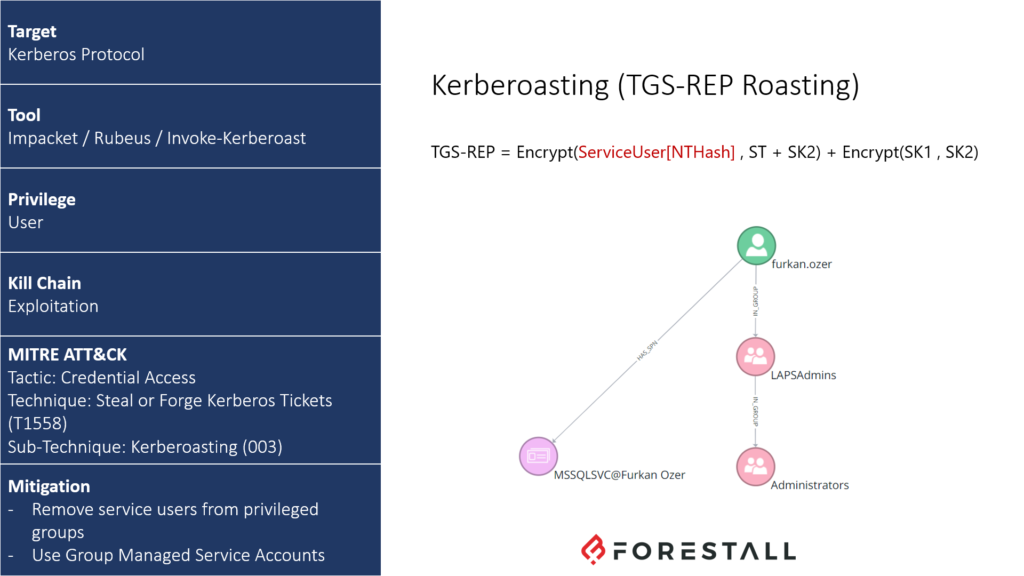
TTP Card of Kerberoasting
In the Kerberos protocol, to access a service, the user first receives a Ticket Granting Ticket (TGT) from the Key Distribution Center (KDC) and then a Service Ticket (ST) for the service they want to access using the TGT. Then, the client accesses the service with the ST. There are two significant points in this process in terms of security.
While the user receives the ST from the KDC, there is no authorization check. For this reason, any user in the domain environment can get the ticket of the relevant service even if not authorized to access it. The authorization check is done when the user tries to access the service. If the user is not authorized to access the service, they receive an error message at the last stage.
The ST that the user receives from the KDC is encrypted with the password hash (NTHash) of the user who manages that service and owns the SPN record. Therefore, the user cannot read the content of the ST. When the ticket is transmitted to the server where the service is running, it is decrypted using the password hash of the service account, and it is checked.
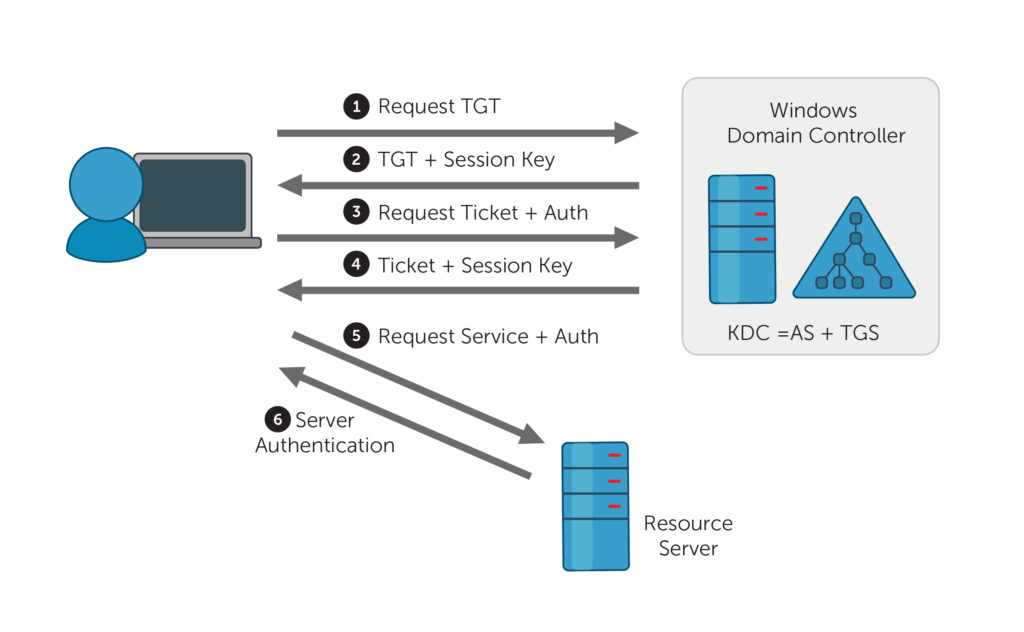
Kerberos authentication illustration
Attackers can use these two key points to perform an attack called Kerberoasting. To perform this attack, the ST of the target service must be obtained by using domain user privileges. Since the obtained ticket is encrypted with the NTHash of the service account, the clear-text password can be obtained with an offline brute force attack. If the password is not complex enough, the hash can be cracked easily. Attackers can use this cracked password for compromising the entire domain.
2. Password Policy
The complexity of service accounts' passwords is one of the most crucial points for Kerberoasting, brute force, and password spraying attacks. If the passwords of the service accounts are not specified as long/complex and are not changed periodically, they will most likely be compromised by attackers.
3. Unnecessary Privileges
Service accounts are often equipped with more than necessary privileges to avoid any problems while running applications. They are usually added as a member of administrator groups (Administrators, Domain Admins, etc.) or the local administrator group (Local Administrators). If the service accounts are added as a member of these groups, as a result of the above-mentioned attacks, the attacker can easily increase their privileges and take over the entire domain environment.
In the image below, the mssql.admin user who manages the MSSQL service has been added to both the Domain Admins and the Local Administrators group on the WS01 computer. In this scenario, when attackers compromise the WS01 computer, they will easily take over Domain Admin privileges.
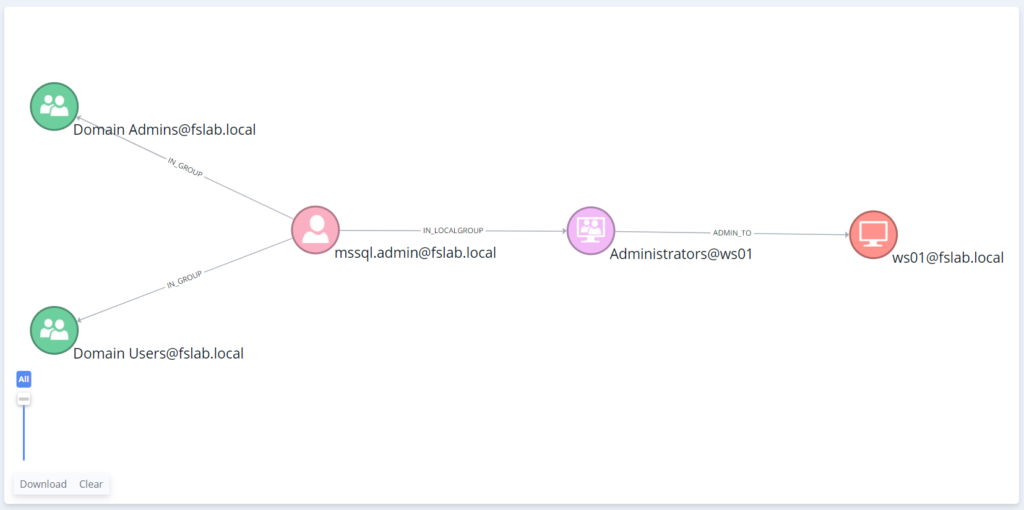
Domain Admins and Local Administrators Group Memberships of mssql.admin
4. Dangerous/Suspicious Access Control Entries
Access Control Entry is a security mechanism designed in detail to control access rights on objects in the Active Directory environment. Due to its detailed design, managing access control entries is very hard, and this complexity enables attackers to target this mechanism. Even if service accounts are not a member of privileged groups, they may have admin privileges because of wrong ACE definitions. Also, non-privileged users can affect these service accounts because of misconfigured ACE implementations. Either using or creating misconfigured ACEs, adversaries can compromise the AD environment and create backdoors for persistency.
For example, in the image below, with a small change on the mssql.admin user, all users in the Domain Users group can reset the password of this account.
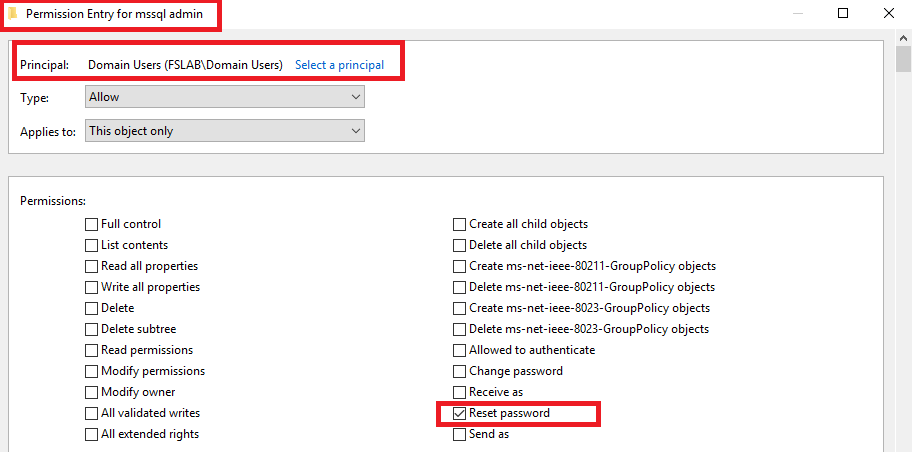
Reset Password ACE change on mssql.admin
Similarly in the image below, the mssql.admin user has been given the right to change the ownership (Modify Owner) of furkan.ozer, which is a privileged user. With this modification right, desired changes can be made by changing the owner of the object.
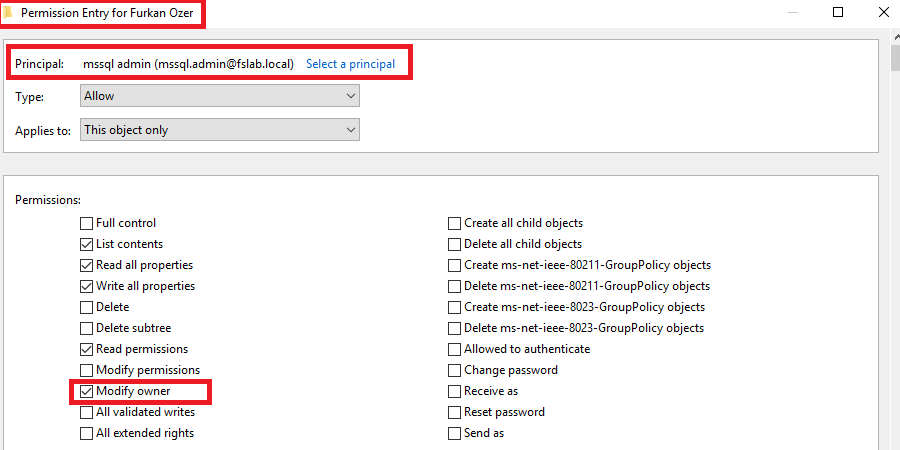
Modify Owner ACE change on furkan.ozer user
Finally, the attack path caused by these misconfigured Access Control Entries can be seen below.
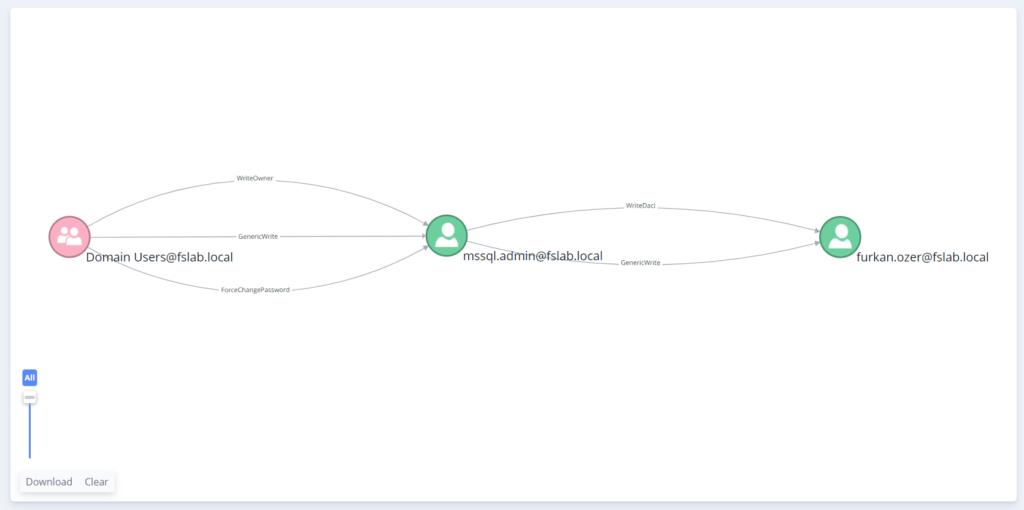
Attack path from Domain Users group to furkan.ozer user with misconfigured ACEs
Group Managed Service Account
Managed Service Account (introduced with Windows Server 2008 R2) and Group Managed Service Account (introduced with Windows Server 2012 R2) are objects that automate the management of service accounts and the periodic password change process. Unlike MSA, GMSA can also be used in cluster structures with more than one server.
- The password of the GMSA account is set by the KDC as 120 characters long and is automatically updated every 30 days. There is no need for any manual interaction on the server side during this process.
- Because GMSA passwords are set automatically, they are not affected by Password Policies and Fine-Grained Password Policies.
- GMSA accounts neither have interactive logon rights like standard service accounts nor have high privileges unless granted specifically. However, these accounts contain different risks.
- GMSAs can also be used for scheduled tasks other than services. However, to use it in scheduled tasks, Logon as batch job privilege must be given to the GMSA.
PowerShell and the ActiveDirectory module are primarily used to create a GMSA.
KDS Root Key and GMSA password operations can be performed by Domain Controller servers with Windows Server 2012 / R2 or higher operating systems. The Active Directory schema version must be at least Windows Server 2012.
Creating GMSA
To create a GMSA, it is necessary to create a KDS Root Key first. It is sufficient to create this key once in a domain environment.
If you have created the KDS Root Key object before, you do not need to create it again. It is sufficient to create the KDS Root Key object only in the main (root) domain.
After running the command, it is necessary to wait 10 hours for the KDS Root Key object to replicate between Domain Controllers properly.
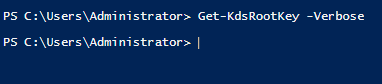
Querying the KDS Root Key object in the domain
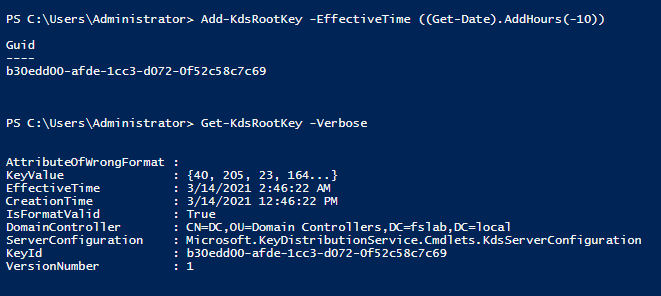
Creating the KDS Root Key object in the domain
To manage the servers where the GMSA accounts will be used, servers can be added into a security group. In this way, services can be managed by adding and removing from the group without making any changes on the GMSA object.
If you create a group and add the servers to this group, you need to restart the servers for the activation of group membership.
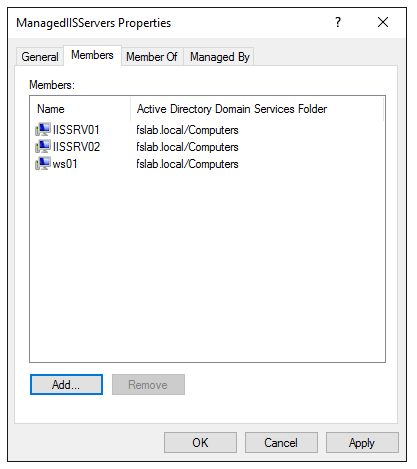
The group created for servers where the GMSA will be used
After performing these operations, a GMSA can be created using the following commands.
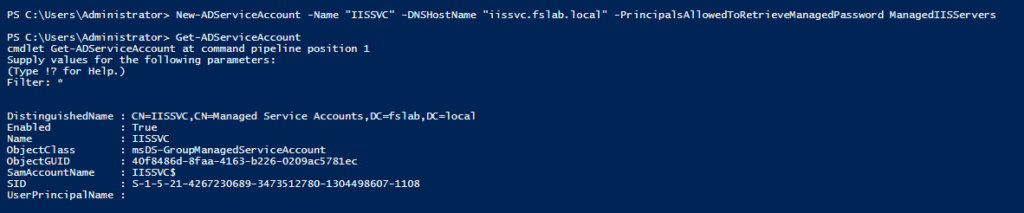
Creating GMSA using PowerShell ActiveDirectory module
The server names which will use the GMSA or the parent group name of these servers should be set to the PrincipalsAllowedToRetrieveManagedPassword parameter. These servers have the right to read and use the password of the GMSA. For this reason, this parameter should be configured correctly, and irrelevant accounts should not be written to this parameter.
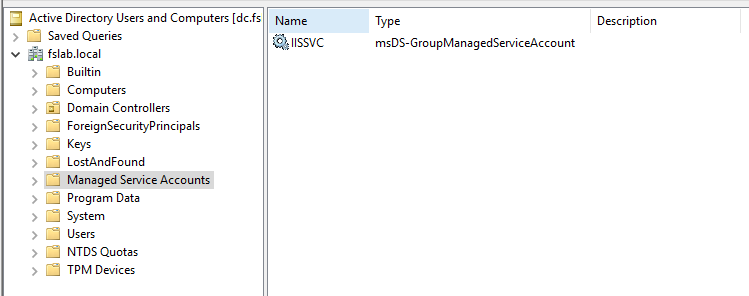
After the GMSA is created, it can be viewed with Active Directory Users and Computers
After the GMSA is created, log in to the server where the service is running and run the following commands.

Installing the GMSA on the server
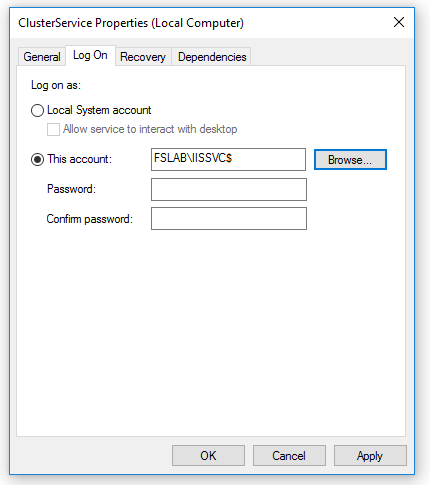
There is no need to enter a password while using the GMSA in the service
Roadmap
- Service accounts with SPN should be determined and documented.
- Domain accounts that are manually used on servers should be detected and documented.
- All service accounts should be prioritized according to the importance of the service, and GMSAs should be created for these services in this order.
- After the GMSAs are assigned to the related services, membership of the old service accounts should be removed from the privileged groups, then they should be disabled or deleted.
- If GMSA cannot be used instead of service accounts:
- Service accounts' parent groups should be analyzed and the account should be removed from the administrator groups. The account must be given the least privileges required by the service.
- Special policies and long/complex passwords should be specified for such service accounts using the Fine-Grained Password Policy.
- Access Control Entries on the service accounts should be examined and suspicious objects that may affect this account should be prevented.
- Access Control Entries from the service account to other objects should be examined, and unnecessary entries should be deleted.
References
See your identity exposure clearly.
Start with a 1-day Proof of Value in your own environment.